6-monitor setup: how to plan your workstation for trading and control rooms
In this article
In short
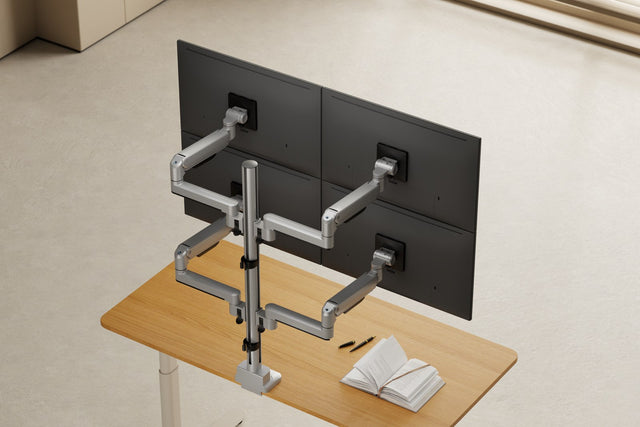
Six monitors belong in two rows – three on the bottom, three on top.
Side by side, six 24-inch monitors would be about 3.3 m wide; in two rows they take about 1.65 m – roughly the width of a large desk. The bottom row holds your main work, the top row everything you just need to keep an eye on.
Charts, order book, news and watchlist all at once – or dashboards, cameras and alarms in a control room: three or four monitors often aren't enough for that. Here you'll find out how much space six monitors need, how to connect them and what goes where.

Two rows or one row: how much space you need
With six monitors, width decides almost everything. A single row of six monitors is practically never worth it: the outer screens sit so far to the side that you keep turning your head and upper body. In two rows, everything stays in one field of view.
Six side by side or three over three – true to scale
Set your desk and monitor size and switch between the layouts.
- Width
- Height
- Head turn to the edge
16:9 monitors with about 1 cm bezel and 1 cm gap, 75 cm viewing distance. Head turn = angle from the center to the outer screen edge.
If you angle the outer monitors slightly toward you, the setup gets a little narrower and also fits on a 160 cm wide desk.
| Feature | Six side by side | Three over three Our recommendation |
|---|---|---|
| Width at 21.5 inches | approx. 2.9 m | approx. 1.45 m |
| Width at 24 inches | approx. 3.3 m | approx. 1.65 m |
| Width at 27 inches | approx. 3.6 m | approx. 1.8 m |
| Height (21.5 / 24 / 27 inches) | one monitor height | approx. 57 / 62 / 69 cm |
| Head turn | head and upper body constantly to the side | everything in one field of view |
| Fits on | hardly any desk | a large desk, or 160 cm when angled |
How we calculated
Approximate values for 16:9 monitors with slim bezels, measured flat and without gaps. If you angle the outer monitors, you need a little less width but more depth.
Which monitor size?
Our recommendation: 21.5 or 24 inches. At 27 inches the wall gets almost 70 cm tall – the top row then sits so far above eye level that you are constantly looking up.
If you still want 27 inches: the Hexa is also available with sliders. The sideways-sliding heads move the monitors in each row closer together, so three over three works up to 27 inches instead of 24 inches.
Also use six identical monitors so that edges and colors line up.
What goes on which monitor?
The most important rule: what you need all the time goes at the bottom in the middle. What you only check now and then moves up and to the edge. And every window gets a fixed place – after a few days your eyes find it without searching.
Example: trading
- News & calendar
- Chart, higher timeframe
- Market overview
- Order book & order entry
- Main chart
- Watchlist & positions
Main screen
The main chart sits right in front of you, with the order entry next to it – so analysis and execution are at the same height. The top row shows the context: higher timeframe, news, market breadth.
Example: control room
- Camera feeds
- Overall status / map
- Camera feeds
- Tickets & communication
- Alarms & dashboard
- System detail view
Main screen
You work at the bottom: see the alarm, open the details, write the ticket. The top row shows what changes constantly but rarely needs input – the situation overview and cameras.

How to connect six monitors
This is the question most 6-monitor setups hinge on. Many current graphics cards have four video outputs – so for six monitors you almost always need a second route. First count the outputs on your graphics card and check the data sheet for how many screens it can drive at once.
| Option | How it works – and what to know |
|---|---|
| Second graphics card | A second card in the PC provides more outputs. The most stable solution for desktop PCs; needs a free slot and enough power from the power supply. |
| Integrated graphics as well | The ports on the motherboard run in parallel with the graphics card. Possible on many desktop PCs, but often has to be enabled in the BIOS first. The performance is enough for charts and spreadsheets. |
| DisplayPort MST | A hub splits one DisplayPort output across several monitors. Common on Windows, not usable for extended displays on a Mac. The bandwidth is shared – at high resolutions the refresh rate drops. |
| USB docking station (DisplayLink) | Monitors run over USB, and a driver handles the video output. Also works on laptops and MacBooks; good for charts, spreadsheets and dashboards, less so for video and games. |
Laptops: the data sheet says how many external monitors are supported. MacBooks with a base chip only handle a few – there, a DisplayLink docking station is usually the only option.
Plan your cables

Six monitors mean six video and six power cables. Measure the route from the computer over the pole to the top monitor – the cables for the top row are often 50 to 80 cm longer than expected.
Run the cables along the arms to the pole and from there down in a bundle. Leave some slack at each arm so no plug gets pulled when you adjust. A power strip right on the desk leg saves long power cables across the room.
Arranging windows: the underrated part
Six monitors only help if every window stays where it belongs. Two tools are already built into Windows or free:
- Snap layouts in Windows 11: With Windows key + Z, you split a monitor into fixed areas, for example two windows side by side.
- FancyZones from Microsoft PowerToys: Microsoft's free tool creates custom grids for each monitor. Hold Shift while dragging, and the window snaps into its zone.
- Save layouts: Many trading platforms and control room programs can save workspaces. Save your arrangement so everything is back in place after a restart.
Ergonomics: work at the bottom, keep an eye on the top
For screen work, the German Social Accident Insurance recommends: keep the monitor as low as possible, the top line of text no higher than eye level, and a viewing distance of at least 50 cm (DGUV Information 115-401). With two rows, the top one inevitably sits higher. Here's how the setup stays comfortable anyway:
- Set the bottom row lowThe bottom edge sits just above the keyboard and desktop.
- Tilt the top row forwardThat way your line of sight hits the screen as straight on as possible.
- Angle the outer monitorsTurn the four outer screens slightly toward the middle so they are all roughly the same distance from your eyes.
- Sit a bit further backAt least 50 cm, and with six monitors preferably a little more. Then you can take in both rows without turning your head much.

Readjusting is part of it
You rarely find the perfect position on the first day. After a week you notice that the top row should sit a little lower or the right monitor a little closer. With spring-assisted arms, that takes one hand – no tools.
Special considerations for control rooms
Different rules apply in a control room than at a private trading desk: the monitors often run around the clock, and the same workstation is used by several people in shifts.
- Monitors for continuous operation: Make sure the manufacturer rates the screens for 24/7 operation. Standard office monitors are usually designed for one working day.
- One workstation, many users: Every shift sits differently. If height and tilt can be adjusted without tools, everyone sets up the workstation in seconds – instead of working with a badly adjusted wall of screens.
- Failure without downtime: If a monitor fails, it has to be replaced quickly. With quick-release plates, you unhook it without touching the other five.
- Keep standards in mind: There is a separate standard for planning entire control centers, ISO 11064 "Ergonomic design of control centres". It goes far beyond individual workstations and is a good starting point if you are planning several workstations.
What does a 6-monitor setup cost?
The monitors are the biggest item, but not the only one. You can estimate your budget with these rough guide values:
| Item | Guide value |
|---|---|
| 6 × 24-inch monitor | approx. €600 to €1,200 (around €100 to €200 each) |
| Second graphics card or docking station | €0 (if you already have one) to approx. €300 |
| Video cables and extensions | approx. €50 to €100 |
| Mount for 6 monitors | e.g. 3IDEE ONE Hexa: 514,08 € |
| Reinforcement plate (depending on desk) | 14,72 € |
| Total without computer | approx. €1,150 to €2,100 |
Rough guide values as of November 2026. Monitor prices vary widely depending on resolution and features.
What matters in the mount
1. Weight and desktop

With six monitors, quite a lot adds up – and the entire weight hangs from a single point on the desk. On top of that comes leverage: the arms reach far forward and to the sides and pull the clamp at the front edge into the desktop. If you use a sit-stand desk, also check the lifting capacity of the frame.
| Part | Weight |
|---|---|
| 3IDEE ONE Hexa mount | approx. 17 kg (pole with base, arms, VESA heads) |
| 6 × 24-inch monitor | approx. 18 to 30 kg (usually 3 to 5 kg per monitor without stand) |
| Total | approx. 35 to 47 kg |
With six monitors at the 12 kg load limit, it would even be almost 90 kg. The exact weight of your monitors without stand is in the data sheet.
Around 40 kg on the contact surface of a desk clamp – that is a high surface load. Especially with softer desktops, the clamp presses into the material over time without reinforcement: dents appear, the edge can break off, and particleboard or honeycomb-core panels give way. The mount then slowly tilts forward, and the monitors no longer sit straight.

Our recommendation for 6 monitors: a reinforcement plate under the clampWithout a plate, the clamp presses on a small area. With a plate, the pressure spreads over a much larger area – the desktop is protected, and dents and scratches don't happen. Especially useful with particleboard, honeycomb-core panels, thin desktops or glass; with glass it always belongs under the clamp.

14,72 € incl. VAT, plus shipping Taxes included.
View product2. VESA size and weight of each monitor

For each monitor, check the weight without stand and the VESA hole pattern on the back, usually 75 × 75 or 100 × 100 mm. With spring arms, the minimum load counts too: a monitor that is too light is just as hard to adjust as one that is too heavy.
Do your monitors and your desk fit? Enter the brand and model. The Setup Finder shows you the VESA size, compatible mounts and the accessories you need – and, if you like, whether a desk reinforcement makes sense. You'll usually find the model name on the label on the back of the monitor.
3. A pole that is tall enough

For two stacked rows, the pole has to be tall enough that the top row doesn't hit its end. Plan for the height of your monitor wall – around 62 cm at 24 inches – plus the distance to the desktop and some reserve for adjusting. It helps if you can set the base height of each row on the pole and then fine-tune directly at the monitor.
3IDEE ONE Hexa: three over three
The Hexa comes in two versions: without sliders for monitors up to 24 inches, with sliders up to 27 inches. Six monitors in two rows on a 90 cm tall pole. In each row, the middle monitor sits fixed in your line of sight, and the four outer ones hang on spring-assisted arms: you push each one up to 20.5 cm up or 3.5 cm down with one hand.

514,08 € incl. VAT, plus shipping Taxes included.
View product
Align monitors flush
577,15 € incl. VAT, plus shipping Taxes included.
View product
Grows with your setup
3IDEE ONE is modular: with slider heads, the monitors in each row can still be moved flush together later. Or you split the setup into two workstations with three monitors each – all you need is a second base with pole. How the system works
Ready for your 6-monitor setup?
Most problems with six monitors come up before you buy: screens that are too big, too few ports, an overloaded desktop, cables that are too short. Check off what you've already sorted out.
All checked. Your setup is ready to go.